How to change worms in Sandworm Playground
To become a worm, tap the orange WORM button at the top on mobile or press F at the bottom prompt on PC. To change species, open WORMS below SHOP, find an unlocked card, and select EQUIP. A gold EQUIPPED button confirms your choice.
Updated 2026-11-22 · Roblox · Frozen Wastes update
Transform or equip a different worm
Become your current worm
Once the intro ends and your human avatar can move, tap the orange WORM button at the top of the mobile screen. On PC, press F at the bottom WORM prompt. You can do this with the starter worm as soon as you spawn.
Tap WORM to leave human form. Open WORMS under SHOP
Choose the WORMS icon in the left sidebar. Swipe or scroll across the cards until you see the name you want. Look for the large green EQUIP button on a worm you own.
WORMS opens your roster. The separate WORM button changes your form. Equip the card and check its status
Select the green EQUIP button. Look for gold EQUIPPED on that card, then close WORMS. If you are still human, use WORM again to enter the selected worm form.
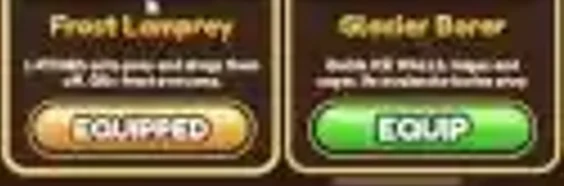
Green EQUIP selects a card. Gold EQUIPPED marks your current choice. Return to human form
The same control now says HUMAN. Tap HUMAN on mobile or press F on PC to go back. You can switch form without picking another card.
HUMAN means you are already the worm. Tap it to switch back.
Confirm the switch
EQUIPPED identifies the selected card. In worm form, your character is a worm and the toggle reads HUMAN.
If you cannot select a worm
If the card displays a level requirement or a Robux offer, check the required level before trying again. If your HUD still says WORM after choosing a card, close the menu and transform. When it already says HUMAN, you are in worm form.